Guides
Create AI Polaroid Camera Photo
Published on September 14, 2025 by Wasim Shaikh
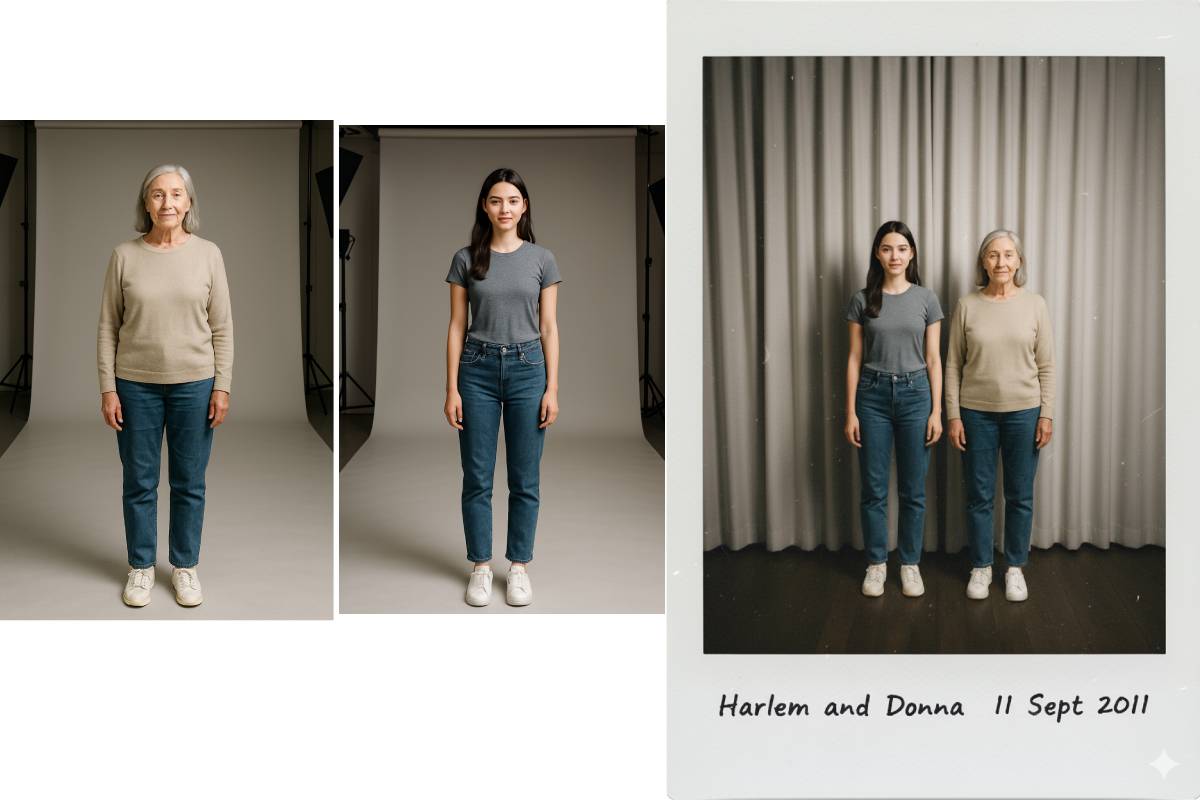
Learn how to create stunning AI-generated Polaroid-style photographs using Gemini AI. This guide will walk you through the process of transforming regular images into vintage Polaroid memories with authentic blur effects and lighting.
Step 1: Prepare Two Images You Want to Use
Start by selecting two high-quality images that you want to combine in your Polaroid-style photo. For best results:
- Use clear, well-lit photos
- Ensure faces are clearly visible
- Choose images with good contrast
- Consider the composition for the final result
I have generated two images of young and old female for this example.
Step 2: Open Gemini App on Desktop or Mobile
Navigate to Gemini and use the following prompt to create your AI Polaroid photo:
Copy this prompt:
Take a photo taken with a Polaroid camera. The photo should look like an ordinary photograph, without an explicit subject or property. The photo should have a slight blur and a consistent light source, like a flash from a dark room, scattered throughout the photo. Don't change the face. Change the background behind those two people with white curtains.
Add handwritten text overlay "Harlem", 11 Sept 2011 bottom
Key Elements of the Prompt:
- Polaroid camera effect: Creates the authentic vintage look
- Slight blur: Mimics the characteristic Polaroid photo quality
- Consistent light source: Simulates flash photography
- White curtain background: Provides a clean, neutral backdrop
- Handwritten text overlay: Adds personalized date and location
Step 3: Download Generated Image
Once Gemini processes your request and generates the image:
- Review the generated Polaroid-style photo
- Download the image to your device
- You can edit the text in the prompt to customize the overlay (change "Harlem" to your preferred location or "11 Sept 2011" to your desired date)
Customization Tips
Text Overlay Options:
- Change the location: "Paris", "Tokyo", "New York"
- Modify the date: Use any meaningful date
- Add names: "Sarah & Mike, Summer 2023"
Background Variations:
- Try "brick wall background" for urban vibes
- Use "garden background" for outdoor scenes
- Experiment with "studio lighting" for professional looks
Lighting Effects:
- "Soft golden hour lighting" for warm tones
- "Natural window light" for softer shadows
- "Vintage flash photography" for authentic Polaroid feel
Final Prompt Template
Here's the base prompt you can customize:
Take a photo taken with a Polaroid camera. The photo should look like an ordinary photograph, without an explicit subject or property. The photo should have a slight blur and a consistent light source, like a flash from a dark room, scattered throughout the photo. Don't change the face. Change the background behind those two people with white curtains.
Pro Tips:
- Experiment with different background descriptions
- Try various lighting conditions in your prompts
- Test different text overlay positions
- Save multiple versions with different customizations
Troubleshooting Common Issues
- Faces look distorted: Add "preserve facial features exactly" to your prompt
- Background too busy: Specify "simple, clean background"
- Colors too saturated: Include "muted, vintage color palette"
- Text not visible: Try "bold handwritten text" or "dark text overlay"